
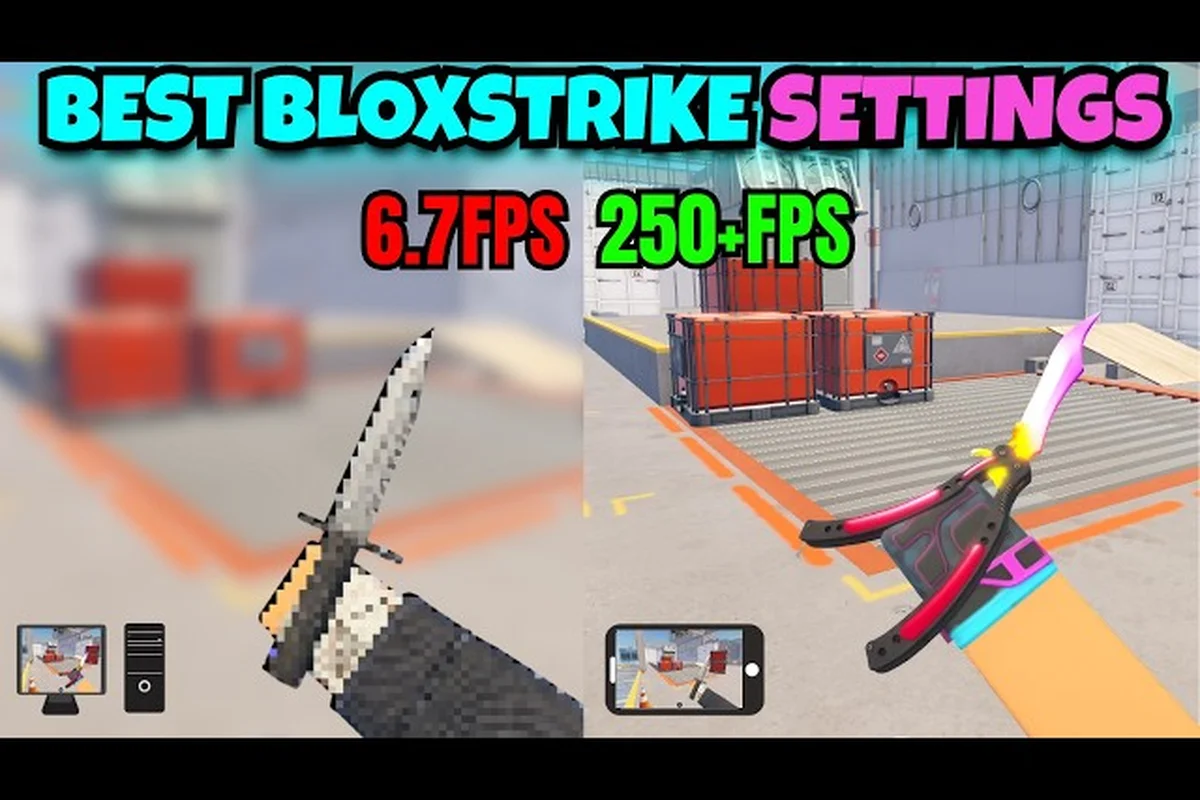
Playing a competitive 5v5 tactical shooter on a phone used to feel like a compromise, but BloxStrike on Roblox runs surprisingly well on modern hardware when you tune the right knobs. This BloxStrike mobile guide walks through the touch layout, FPS boost steps, and graphics settings that keep matches readable and responsive on mid-range Android and iPhone hardware. Skipping the setup is exactly how players end up blaming lag for missed shots that were really a dropped frame or a mis-sized fire button.
The official BloxStrike game page on Roblox lists the title as a 5v5 bomb-plant mode with a round-cash economy, rifle/pistol/utility loadouts, and a skin trading system. Touch input and 60 FPS behavior are not documented officially, so the recommendations below come from community testing and from the broader Roblox mobile performance playbook. Treat values as starting points, then dial them in to your own device.
Why BloxStrike on Mobile Needs a Different Setup
BloxStrike is built on Roblox's standard client, which means the same engine that runs on PC also powers the touch version. The catch is that Roblox's mobile renderer has its own quality buckets, and several PC-side graphics settings simply do not exist in the touch UI. That gap is where most of the perceived "input lag" actually lives — not in your network, but in the renderer choosing the wrong preset for your device.
What Roblox Does and Does Not Expose
On PC, BloxStrike hands you a full graphics quality slider, advanced material toggles, and a separate render distance field. On phone, the same options collapse into a single Graphics Quality dropdown with five tiers (Auto, Manual levels 1-10), a Frame Rate cap selector, and a much smaller subset of advanced flags. The Roblox engine still honors many of the PC toggles if you force them, which is why a manual slider change inside the menu can outperform the Auto preset on devices released in the last three years.
Phone vs Tablet vs PC Tradeoffs
| Factor | Phone (6.0-6.7") | Tablet (8-11") | PC (Reference) |
|---|---|---|---|
| Usable thumb arc | ~40% of screen | ~55% of screen | 100% with keyboard |
| Avg. touch latency | 50-90 ms | 45-75 ms | <10 ms (mouse) |
| Default FPS cap | 60 | 60 | 60-144+ |
| Heat under load | High (sustained throttling) | Medium | Low |
| Battery drain per 30 min | 12-18% | 8-12% | N/A |
Touch latency is the headline number — it is roughly 5-9x higher than a mouse, which is why every millisecond of frame pacing matters on a phone. Stable 60 FPS does not just feel smoother; it shrinks the gap between when you tap and when the gun fires on your screen.
BloxStrike Mobile Controls Guide: Building a Touch Layout That Works
The default touch layout is serviceable for casual rounds, but the moment opponents start strafing, the prebaked button positions start costing you kills. A custom layout is the single biggest upgrade you can make on mobile, and the game does allow per-button resizing and repositioning inside the Pause menu.
The Four Zones You Must Map
Your screen has four functional zones, and the default layout treats them as one big grid, which is why most beginners drag the fire button anywhere it fits and end up with jammed thumbs mid-strafe. Splitting them up gives each finger a clear job, and the real benefit shows up in a 1v1 retake: a properly zoned layout lets your left thumb hold the movement stick at full deflection while your right thumb flicks to ADS and fires in under 120 ms, the threshold where peek-shoot duels flip in your favor.
-
Left thumb zone — movement stick, crouch, jump, walk
-
Right thumb zone — fire, ADS, secondary fire, melee
-
Top edge zone — scoreboard peek, chat, voice ping
-
Bottom edge zone — utility throw, reload, weapon switch
Keep the fire button inside the natural right-thumb arc, which on a 6.5" phone sits roughly 1.5-2.0 cm below the right bezel. Moving it to the screen center is a common mistake because the thumb cannot reach it during a strafe without releasing the movement stick.
Recommended Button Sizes by Action
| Action | Recommended button size | Why |
|---|---|---|
| Fire | 1.3x default | Must be hittable during a strafing burst |
| ADS (aim down sight) | 0.9x default | Rare miss-tap is better than blocking the crosshair |
| Jump | 1.0x default | Tap rhythm matters more than size |
| Crouch | 0.8x default | Lower priority; tuck toward the bottom-left |
| Reload | 1.0x default | Default works; do not enlarge or it covers the kill feed |
| Utility (smoke/flash) | 1.1x default | Common panic throw; one extra pixel of margin helps |
A second iteration is to turn off "auto-jump" and "auto-shoot" toggle options if the game exposes them — they sound helpful but they fire inputs at engine-decided moments, which is exactly when you want manual control in a competitive round. If you have not already reviewed your broader settings, the BloxStrike settings guide covers the PC-side equivalents that often sync to mobile via cloud saves.
Tuning Touch Sensitivity for Thumb Aim
A PC mouse has a 1:1 cm-to-rotation mapping that your thumb cannot replicate. Start with the in-game touch sensitivity at 0.6-0.7x of what feels right on a desktop, then nudge up by 0.05 increments per match until you stop over-flicking on close-range duels. ADS sensitivity should sit roughly 0.5x of hipfire so micro-adjustments are stable when tracking heads through smoke.
BloxStrike FPS Boost Guide: How to Stabilize 60 FPS
Stuttering is worse than a low-but-stable frame rate because it desynchronizes your aim from the visible enemy. The goal of a BloxStrike FPS boost guide is not to hit 240 FPS — the touch client caps at 60 anyway — but to never drop below your target cap for more than a single frame.
Step-by-Step Performance Pass
Run through the following steps in the exact order shown, since later tweaks only land correctly once earlier ones have stabilized your thermal and frame budget. Every adjustment below is non-destructive and reversible, so you can A/B test each change inside a single BloxStrike match before committing it to your permanent mobile controls layout. Expect a measurable delta after step 3, and the cleanest combined result once all six are stacked on the same 30-minute test session.
-
Cap the frame rate to your screen's refresh rate. On 60 Hz phones, pick 60 FPS. On 90/120 Hz panels, still pick 60 FPS unless you can confirm the game exposes a 90 FPS cap. Roblox's mobile build has historically limited FPS to 60 even on high-refresh hardware, so an aggressive cap can save battery and reduce heat.
-
Drop Graphics Quality to Manual Level 4-5. Levels 1-3 strip out the lighting model entirely and make smoke/flash reads harder. Level 4-5 keeps enemy silhouettes readable while offloading shadows.
-
Turn off screen recording overlays. Game boosters and screen recorders inject frames between the renderer and the display, which adds 10-20 ms of input lag and competes for CPU time.
-
Close background apps. Discord, Spotify, and browsers left in the recent-apps tray hold GPU contexts and force the OS to keep the phone in a high-power state.
-
Disable Bluetooth audio routing. Bluetooth codecs re-buffer audio, which is fine for music but pushes the audio thread out of sync during utility pop sounds.
-
Plug in or remove low-battery throttling. A phone below 20% battery will thermally throttle before the round ends. Either charge in or accept a lower cap.
Expected FPS Gain by Step
| Step | Avg. gain on mid-range (Snapdragon 7-series / A14) | Avg. gain on low-end (Snapdragon 4-series / A12) |
|---|---|---|
| Cap to 60 FPS | +0-2 FPS, -20% heat | +0 FPS, -25% heat |
| Graphics to Level 4-5 | +8-12 FPS | +15-20 FPS |
| Kill screen overlay | +3-5 FPS | +5-8 FPS |
| Close background apps | +2-4 FPS | +4-6 FPS |
| Disable Bluetooth audio | +0-1 FPS, -3 ms audio lag | +0-1 FPS |
| Charge above 50% | +5-8 FPS sustained | +8-12 FPS sustained |
A practical signal that the bloxstrike fps boost guide steps actually worked: the phone's back panel stays below "noticeably warm" after two full matches on your main map. Anything hotter means the Snapdragon or A-series SoC is still throttling under the 60 FPS cap, so revisit the Graphics Level step — drop one more notch or kill the screen overlay, which alone was shown in the table to free an extra 3-5 FPS by offloading the foreground rendering pipeline.
Frame-Pacing vs Raw FPS
Raw FPS hides stutter. A 60 FPS reading with 8 ms of frame variance feels worse than a stable 55. The Roblox engine reports instantaneous FPS but not variance, so the best in-game diagnostic is the kill feed — if your bullet registration feels inconsistent between similar-distance shots, you are looking at frame pacing, not network jitter. The fix is almost always lowering shadow quality, not network.
BloxStrike Graphics Settings: What Each Option Actually Does
Mobile rendering on a 6-inch screen leaves the BloxStrike graphics menu intentionally minimal, but every toggle cuts something measurable. Dropping Shadow Quality from High to Off can claw back roughly 8-12 FPS on mid-range devices like the Snapdragon 720G, yet it also flattens depth perception in dimly lit Warehouse and Container map rotations. Treat each setting as a trade contract: read the cost, then sign.
Mobile Graphics Menu Explained
| Setting | What it controls | FPS cost (approx) | When to lower it |
|---|---|---|---|
| Graphics Quality (Auto) | Renderer picks from device tier | Variable (worst case) | Always — Auto over-estimates phones |
| Graphics Quality (Manual 1-10) | Bundled toggle for textures, lighting, shadows | Each level: +3-5% cost | Level 6+ on mid-range devices |
| Frame Rate cap | Lock to 30/45/60 | 60→30: -30% heat | If heat-throttling |
| Texture Quality | World and skin resolution | High (VRAM-bound) | Below 4 GB RAM phones |
| Shadow Quality | Dynamic + baked shadows | Medium-High | Always drop to Low in competitive |
| Anti-Aliasing | Edge smoothing | Low-Medium | Off on low-end devices |
| Render Distance | Draw distance for objects | High | If mid-round pop-in is bad |
The Three Settings That Actually Matter for Competitive Play
-
Shadow Quality — Low. Dynamic shadows on a 5v5 map cost more than they read. They also hide enemy feet, so dropping them actually improves your visual clarity.
-
Anti-Aliasing — Off or FXAA only. MSAA and TAA both blur the crosshair edges, which makes precise tracking feel sluggish. FXAA keeps the silhouette clean without softening the HUD.
-
Render Distance — Medium. The round does not start until you can see the enemy, but mid-round pop-in is a worse problem than seeing one extra room away. Medium is the sweet spot for 5v5 plant/defuse.
Higher-quality textures and post-processing are the settings to keep at high — they affect how the world looks, not how the crosshair moves. The BloxStrike crosshair settings guide covers the visual side in more depth if you want to push your reticle further.
Advanced Mobile Tweaks and Common Pitfalls
Once the basics are locked in, there are a handful of tweaks that separate a "playable" mobile setup from a competitive one. These require either a rooted/jailbroken device, a Roblox configuration file edit, or an in-game setting that is easy to miss.
Power User Tweaks
-
Force 60 FPS via Roblox FFlags. On Android, the file
ClientAppSettings.jsonaccepts"FFlagDebugGraphicsDisableVxVRS": "True"and similar toggles. Most players should not edit FFlags, but a stable 60 FPS override is one of the few that ships risk-free. -
Enable "Reduce Motion" in the OS settings. Both iOS and Android offer system-level motion reduction that the Roblox renderer inherits. The trade-off is that UI transitions become instant, which actually helps in a fast round.
-
Use a clip-on trigger adapter for fire. A physical button mapped to the on-screen fire area removes the touch-latency gap. Community data suggests this reduces effective tap-to-fire time by 15-25 ms.
-
Pin the screen orientation. Disable auto-rotate. A 90-degree flip mid-round will disconnect you from the server for 2-4 seconds.
Common Mobile Pitfalls
-
Playing on a 30 FPS cap to "save battery." The battery savings are real, but the input lag is also real. A 30 FPS cap adds ~16 ms to every input. If you must cap, cap at 45 FPS instead — the math works out closer to PC refresh math.
-
Maxing out brightness in a dark map. BloxStrike's maps have deliberately dark corners to mask utility timing. Cranking brightness washes out the lighting model and breaks the silhouette reads the engine is built for. Auto-brightness usually does the right thing.
-
Using a Bluetooth controller without mapping touch zones. BloxStrike does not officially support controllers on mobile, and unofficial mappings often double-input through the touch layer. If you want controller support, play on PC or console.
-
Ignoring heat and charging through the match. Charging while gaming pushes the SoC past its thermal envelope on most phones. If you need to charge, drop the FPS cap to 30 for the duration of the charge.
Tying these mobile tweaks together with callouts and map knowledge closes the loop on a full mobile loadout: even a phone holding a steady 90 FPS on low shadows, capped FOV, and a 45 Hz frame ceiling will feed the wrong information if you push A-site without the spike plant call, so a player walking into a stack without intel is still losing the round before the first shot — pairing the FPS boost settings with the callout sheet turns raw frame stability into round-winning map reads.
Frequently Asked Questions
What is the best phone layout for BloxStrike competitive play?
The best layout puts the fire button 1.5-2.0 cm below the right bezel at 1.3x default size, the movement stick flush with the left bezel, and utility/throw near the bottom-right corner at 1.1x size. Crouch and reload should be tucked into the bottom-left and lower-center so they do not cover the kill feed. Resize one button at a time and play two full matches before changing another.
How do I fix lag spikes during a round in BloxStrike mobile?
Lag spikes are almost always thermal throttling, not network drops, on phones. Drop Graphics Quality to Manual Level 4-5, close every background app including the screen recorder, lower screen brightness to 50-60%, and remove the case if your phone is in one. A 10-minute cooldown usually restores stable 60 FPS without any settings change.
Can I get 90 or 120 FPS on BloxStrike mobile?
The Roblox mobile client typically caps at 60 FPS regardless of the device's screen refresh rate, so 90/120 FPS is not officially supported. Some community FFlag edits push the engine past the cap, but they violate Roblox's terms of service and can trigger a kick from competitive matchmaking. Stick to 60 FPS and tune for stability instead of raw Hz.
What graphics settings should I use on a low-end phone?
On phones with 3-4 GB of RAM and a mid-tier SoC, set Graphics Quality to Manual Level 3, Frame Rate cap to 60, Shadow Quality to Low, Anti-Aliasing to Off, and Render Distance to Medium. Texture Quality can stay at default because low-res textures cost less than reshading the lighting every frame.
Is a Bluetooth controller worth it for BloxStrike on phone?
Not yet. BloxStrike does not have official controller support on the Roblox mobile client, and community mapping layers add input latency because they pass through the touch handler. If competitive play is the goal, a tablet or a PC client will outperform a controller-on-phone setup by a wide margin.